RigvaneAn app bySoluptions

Ribbon Studio for Excel developers on Mac

Your Excel ribbon,designed, not guessed.

Rigvane turns the custom ribbon of any workbook into something you can see and shape: drag in tabs, groups and buttons, watch the XML follow, catch the mistakes that make Office drop a ribbon, and get every VBA callback ready to paste. Fully offline, on your Mac.

  • macOS 12 or later
  • Apple silicon and Intel
  • Works offline
  • English · Español
Sales-Template.xlsm
Illustration of how Rigvane works: the same ribbon in the design view, the XML and the VBA callbacks.

Illustration of how Rigvane works: the same ribbon in the design view, the XML and the VBA callbacks.

4views of the same ribbonDesign, Split, XML and Callbacks, always in sync.
40+checksModelled on the rules Office applies, before Excel ever opens the file.
34ribbon elementsWith 64 attributes, typed and explained in the inspector.
6file types.xlsm, .xlsb, .xlam, .xltm, .xlsx and .xltx.

The studio

See the ribbon.
Shape it directly.

Rigvane opens the workbook, finds its ribbon and shows it the way Excel will: tabs, groups, buttons, menus and galleries, with your own icons. Change it by hand and every view follows.

Design it visually

Drag, drop, rename. The ribbon answers.

  • Drag elements from the library into place: Rigvane only lets them land where the schema allows.
  • Rename labels on the canvas, duplicate whole groups with fresh ids, reorder with the keyboard.
  • Show Excel’s own tabs around yours, and place your controls among the built-in ones.
  • Preview what VBA would supply at runtime (labels, states) without saving any of it into the workbook.
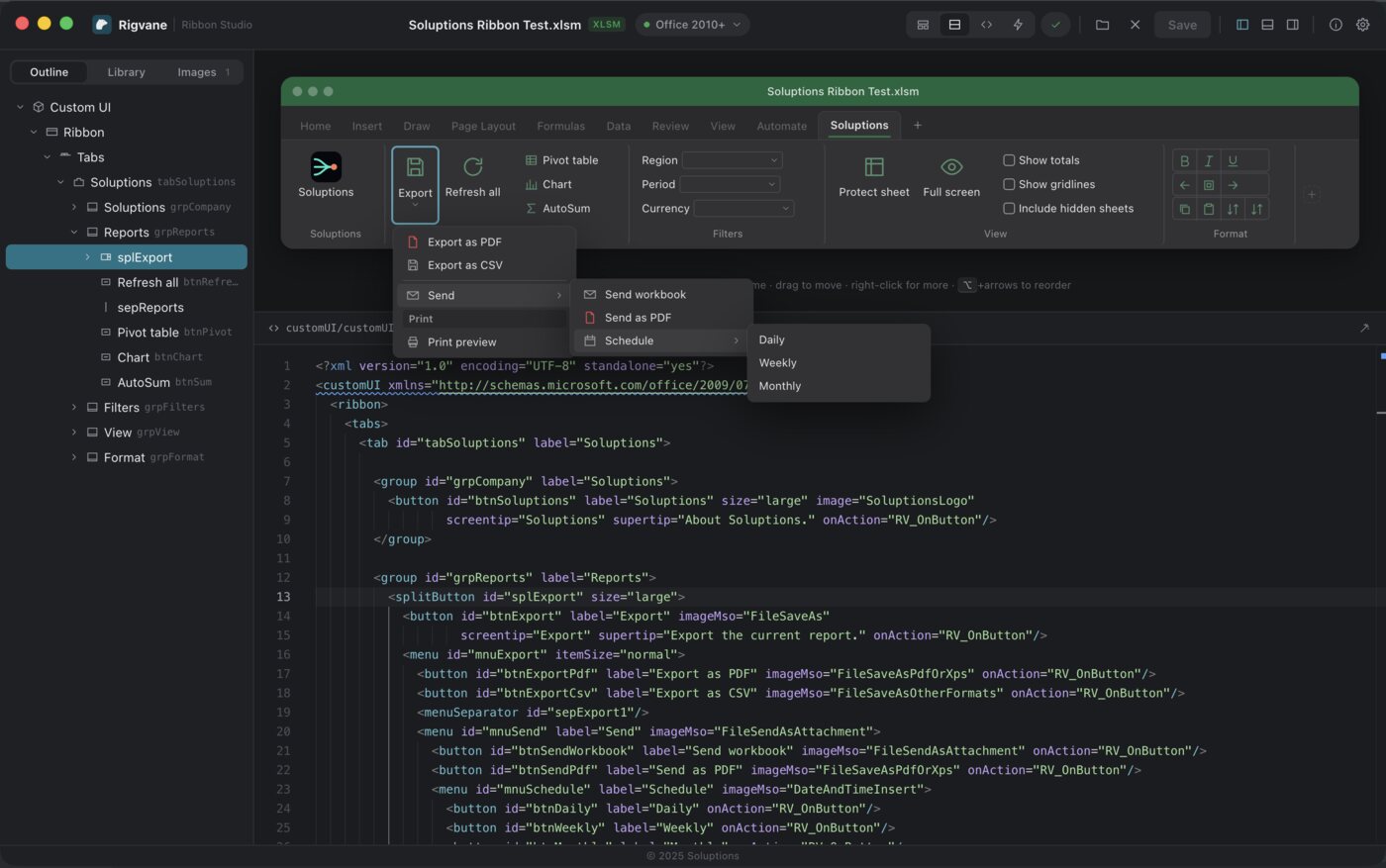
Rigvane’s split view: a custom tab with its menus open in the designer, next to Excel’s own tabs, above its XML

Or write the XML

A real code editor that knows the ribbon.

  • Suggestions for the elements, attributes and images that fit where you are typing.
  • Errors underlined as you type, with a clear message, and quick fixes where Rigvane knows one.
  • Split view keeps the design and the XML side by side, so you see each change both ways.
  • Format, import and export the ribbon XML; full undo and redo.
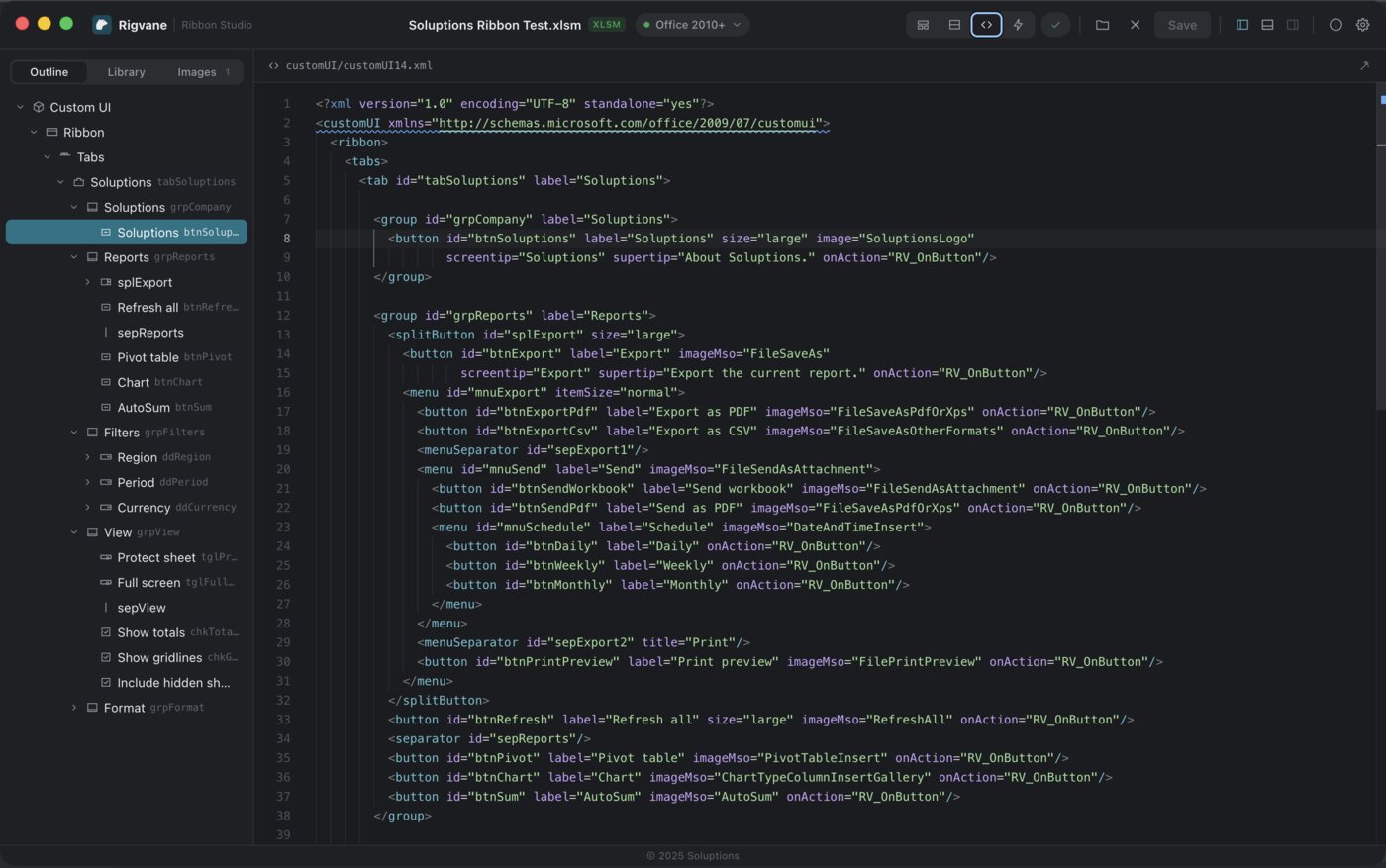
Rigvane’s XML view: the ribbon XML, with the outline of the whole ribbon on the left

Every control at hand

A library to add from, an inspector to fine-tune.

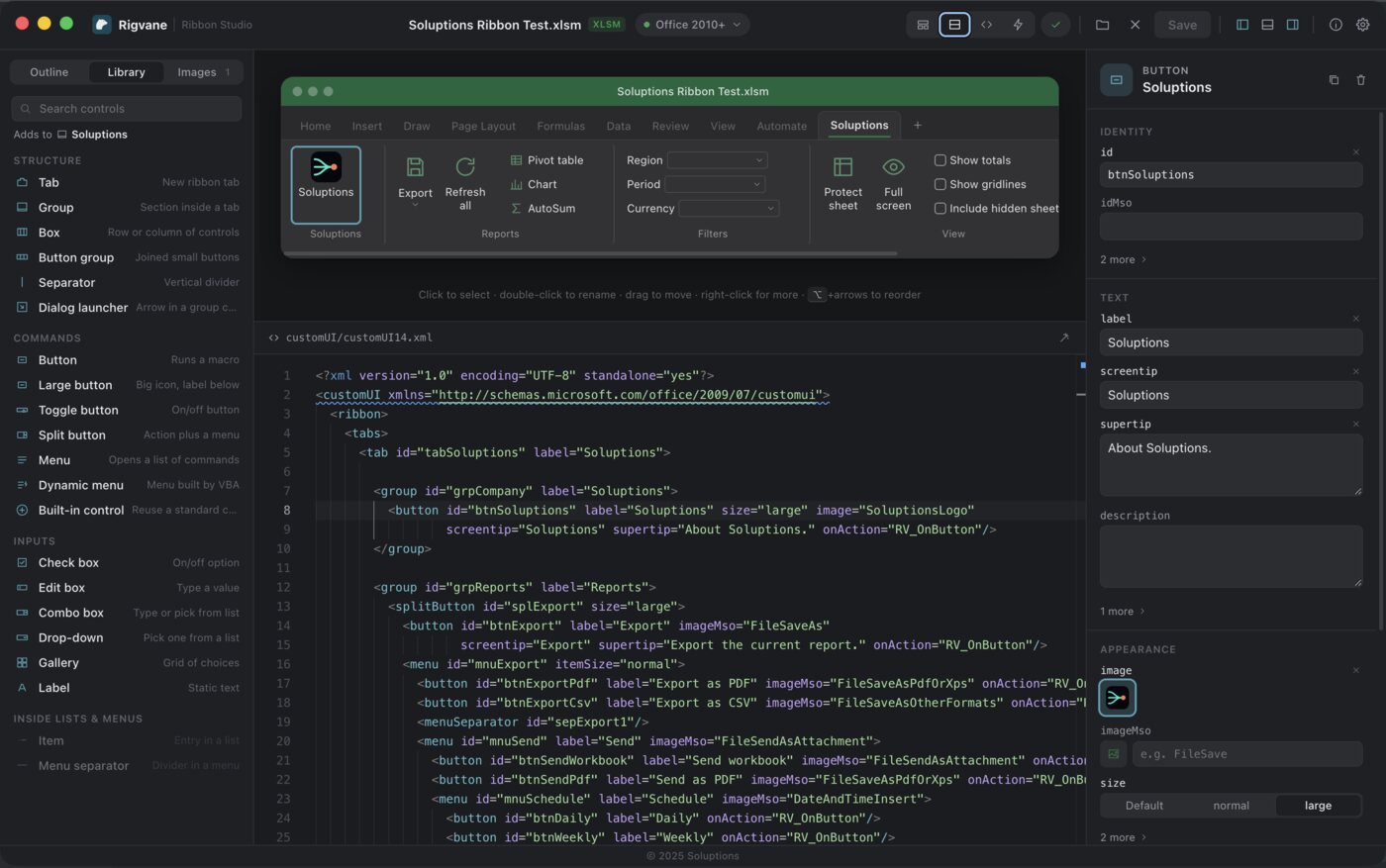
  • Search the library of controls, from tabs and groups to split buttons, galleries and drop-downs, each with a line on what it does.
  • The outline shows the whole ribbon as a tree, with every id next to its label.
  • Select a control and the inspector shows its attributes by topic: identity, text, appearance. The less common ones are a click away.
  • Choose one of your own images or an Office built-in icon by name, and its size.
Rigvane with the control library on the left, the ribbon and its XML in the middle and the inspector on the right

Before Excel complains

Office forgives nothing.
Rigvane tells you first.

One schema mistake and Office silently ignores the whole ribbon: no error, no tab, no clue. Rigvane checks the ribbon while you work, with rules modelled on what Office enforces and practical warnings on top.

Error

Order inside the ribbon

Inside <ribbon> the order must be: qat, contextualTabs, tabs.
Error

Dialog launchers

<dialogBoxLauncher> must be the last element of its group.
Error

Split buttons

<splitButton> must contain a <button> or <toggleButton> followed by one <menu>.
Warning

Excel for Mac

Backstage customizations are ignored by Excel for Mac.
Info

Quick Access Toolbar

Office ignores <qat> unless <ribbon startFromScratch="true">.
Warning

Callbacks

The dialog launcher button has no onAction.

Messages as Rigvane shows them. Many come with a quick fix.

customUI14.xmlcustomUI.xml

Both ribbon versions

Edit the Office 2010 and later ribbon (customUI14.xml) and the Office 2007 one (customUI.xml), each checked against its own schema.

VBA, wired

Every callback,
with the right signature.

Ribbon buttons call VBA procedures, and each kind of control expects a different signature. Rigvane finds every callback in the ribbon, writes the stub Office expects for it and warns you when one name is wired to callbacks that need different ones.

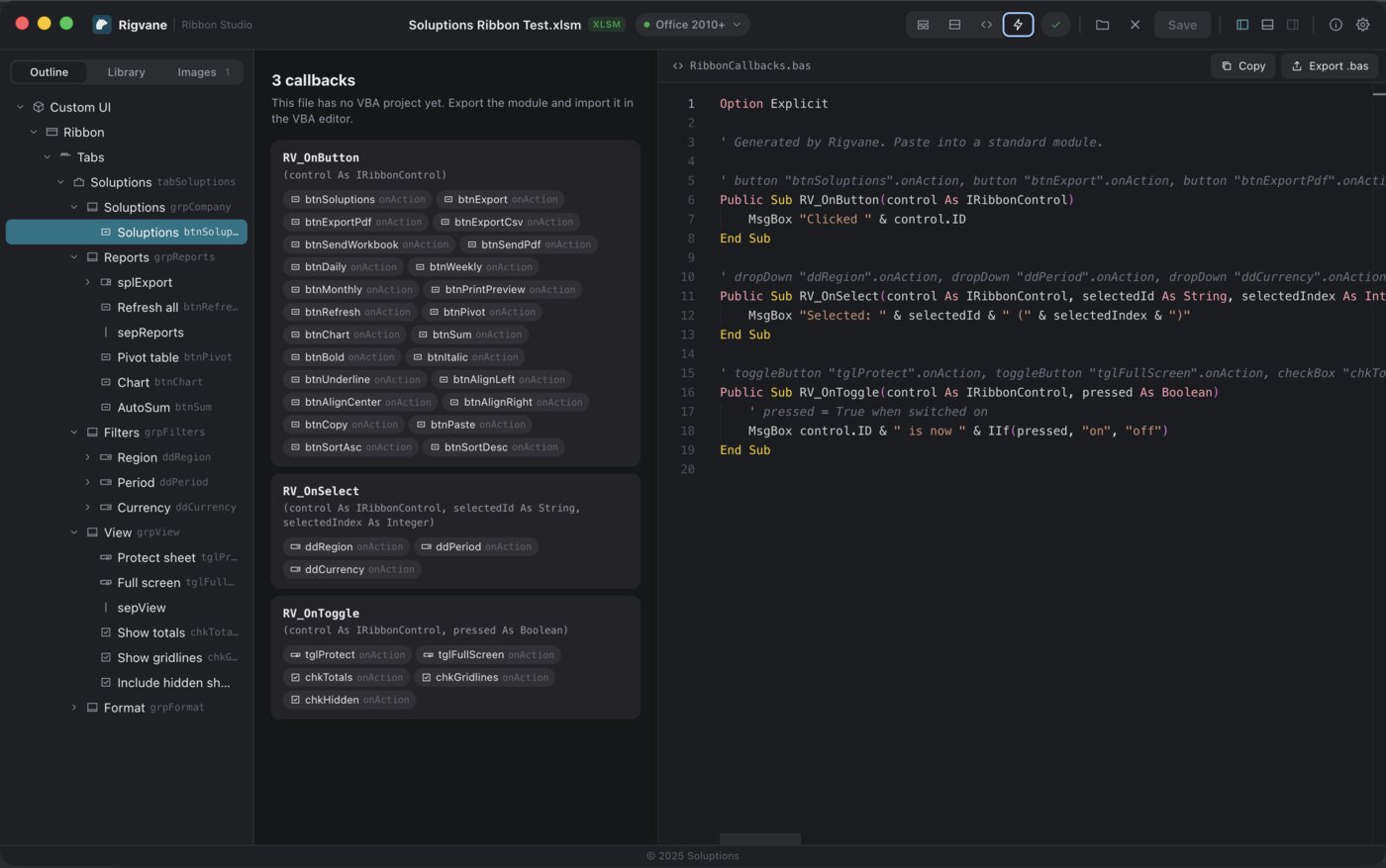
  • All callbacks in one view, each with the controls that use it.
  • Ready-to-adapt procedures with the right parameters and a first line to start from; values come back through ByRef parameters, as Office requires.
  • Export them as a .bas module to import into the VBA editor.
Rigvane’s Callbacks view: three VBA procedures, the controls that call each one, and the module ready to copy or export

Your icons

Images that stay
connected.

A ribbon image lives in several places inside the workbook at once. Rigvane keeps them together, so an icon never goes missing.

01

Insert your own

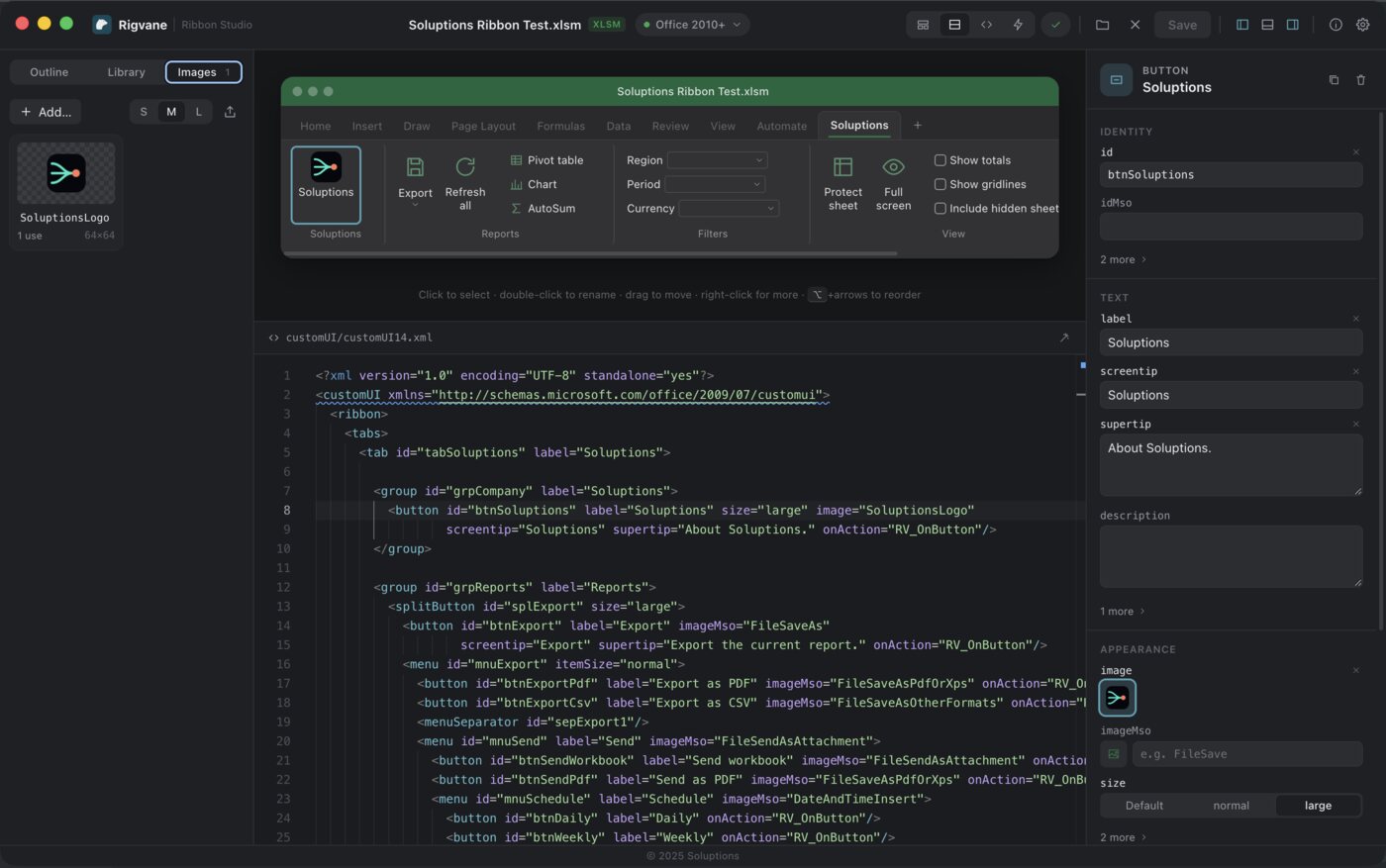
PNG, JPEG, GIF or BMP, with size hints. Or pick from Office’s built-in icons by name.

02

Rename safely

Every control that uses the image is updated, in both ribbon versions. Rigvane shows what will change first.

03

Delete without breaking

Controls that used it fall back to a built-in icon, and Rigvane warns you when VBA may still ask for it by name.

04

Export them all

Take the images out of the workbook to reuse them elsewhere.

Rigvane’s Images panel with the workbook’s own icon, used by a large button in the ribbon

Built-in guide

The answers are
inside the app.

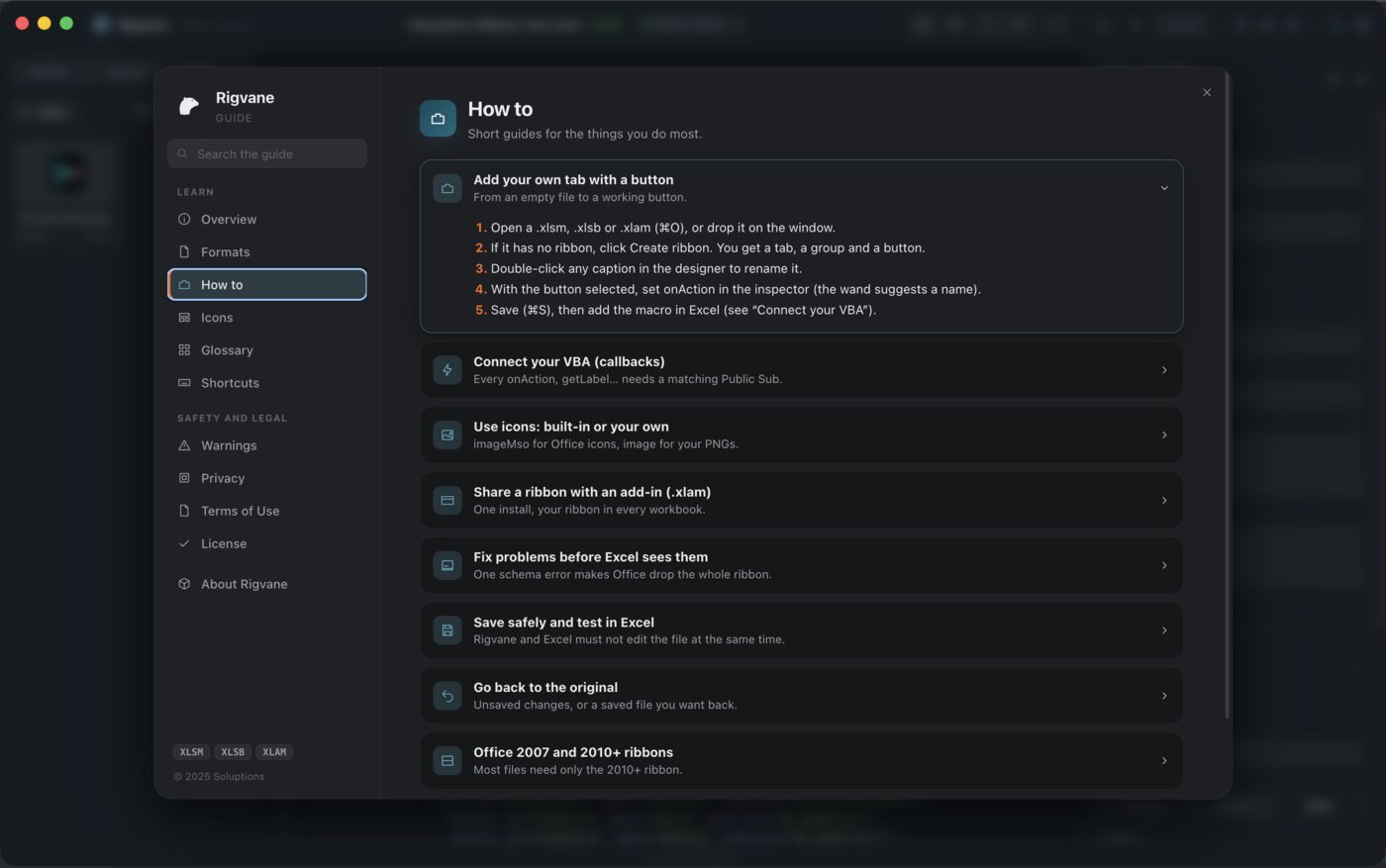
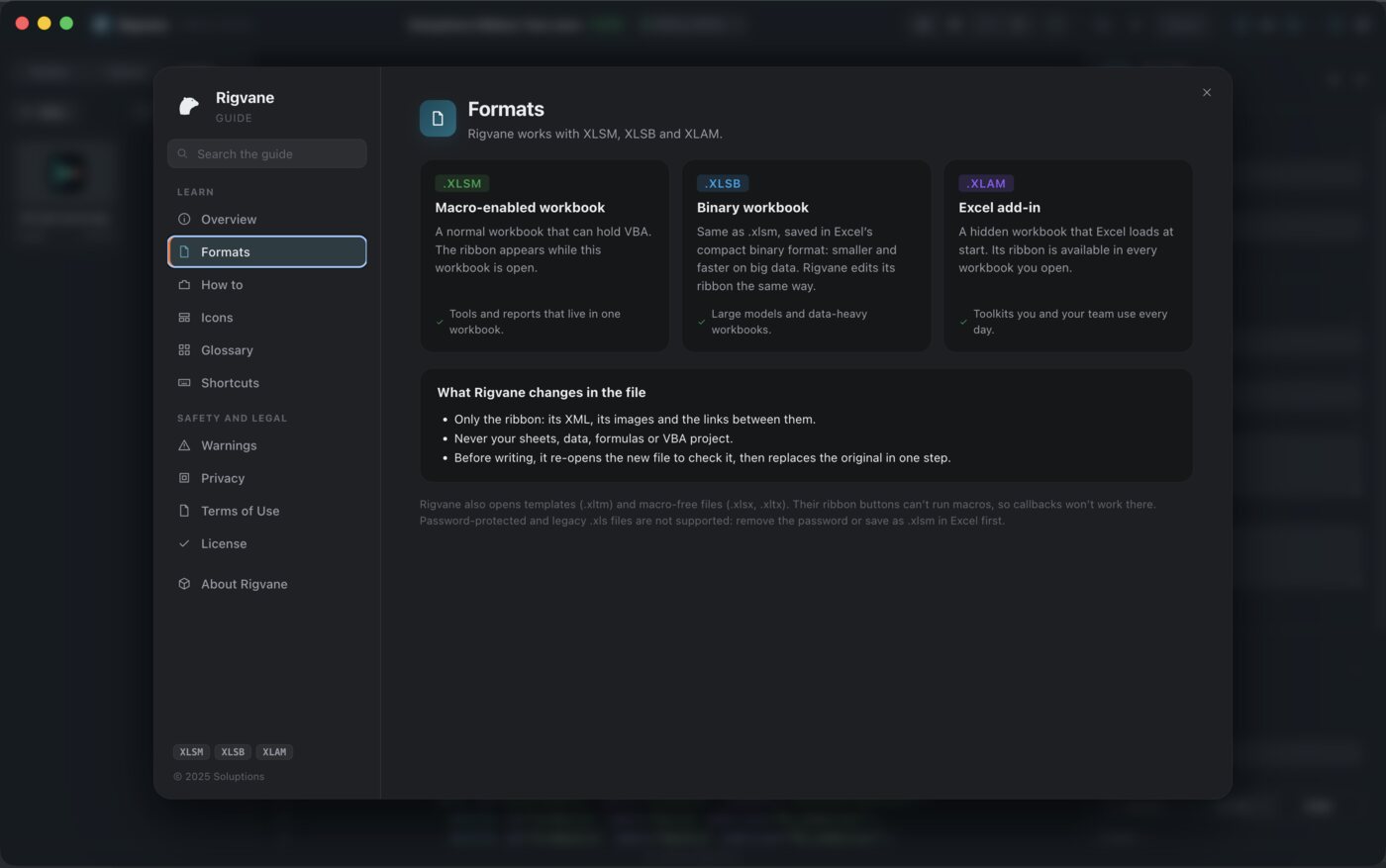
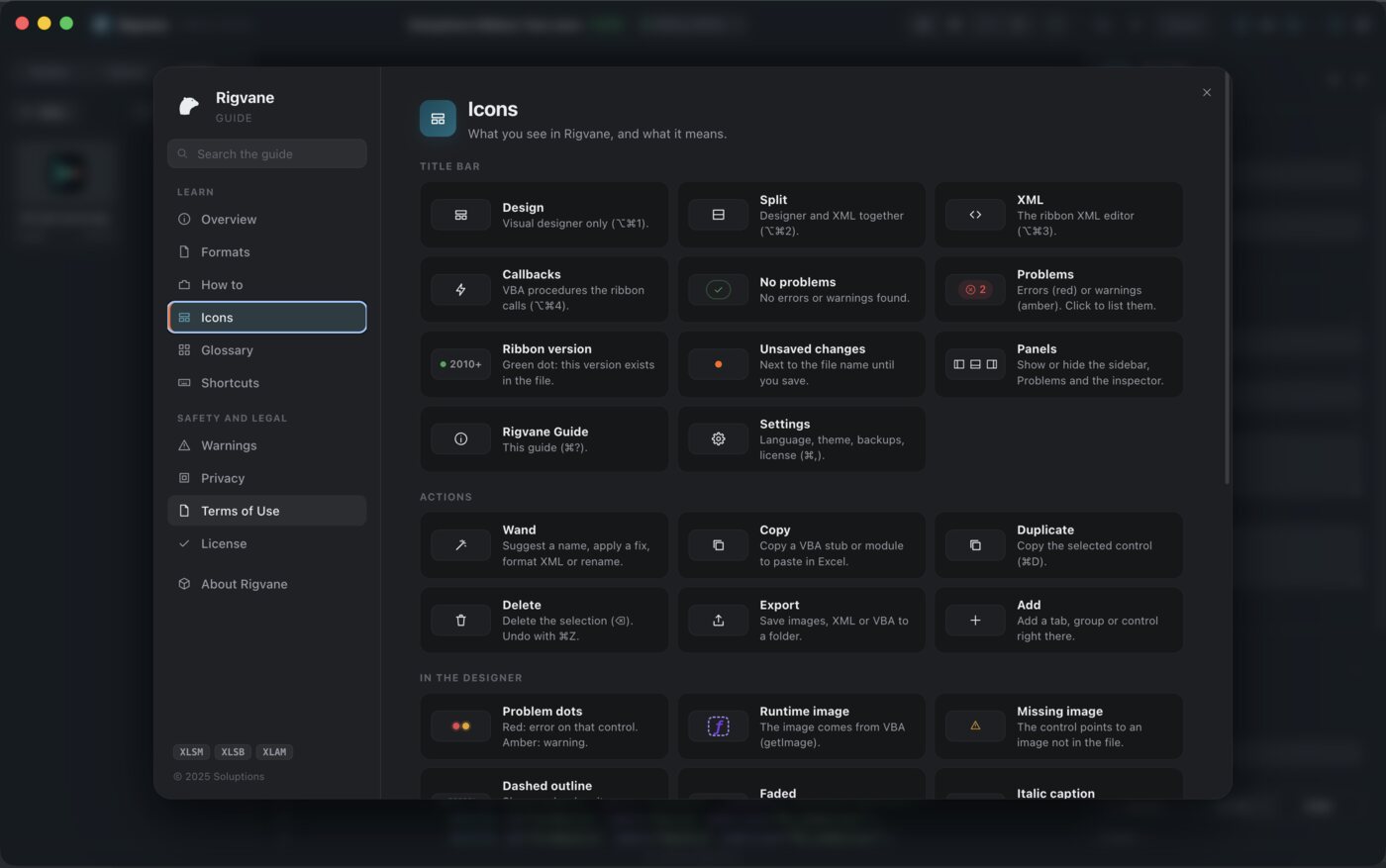
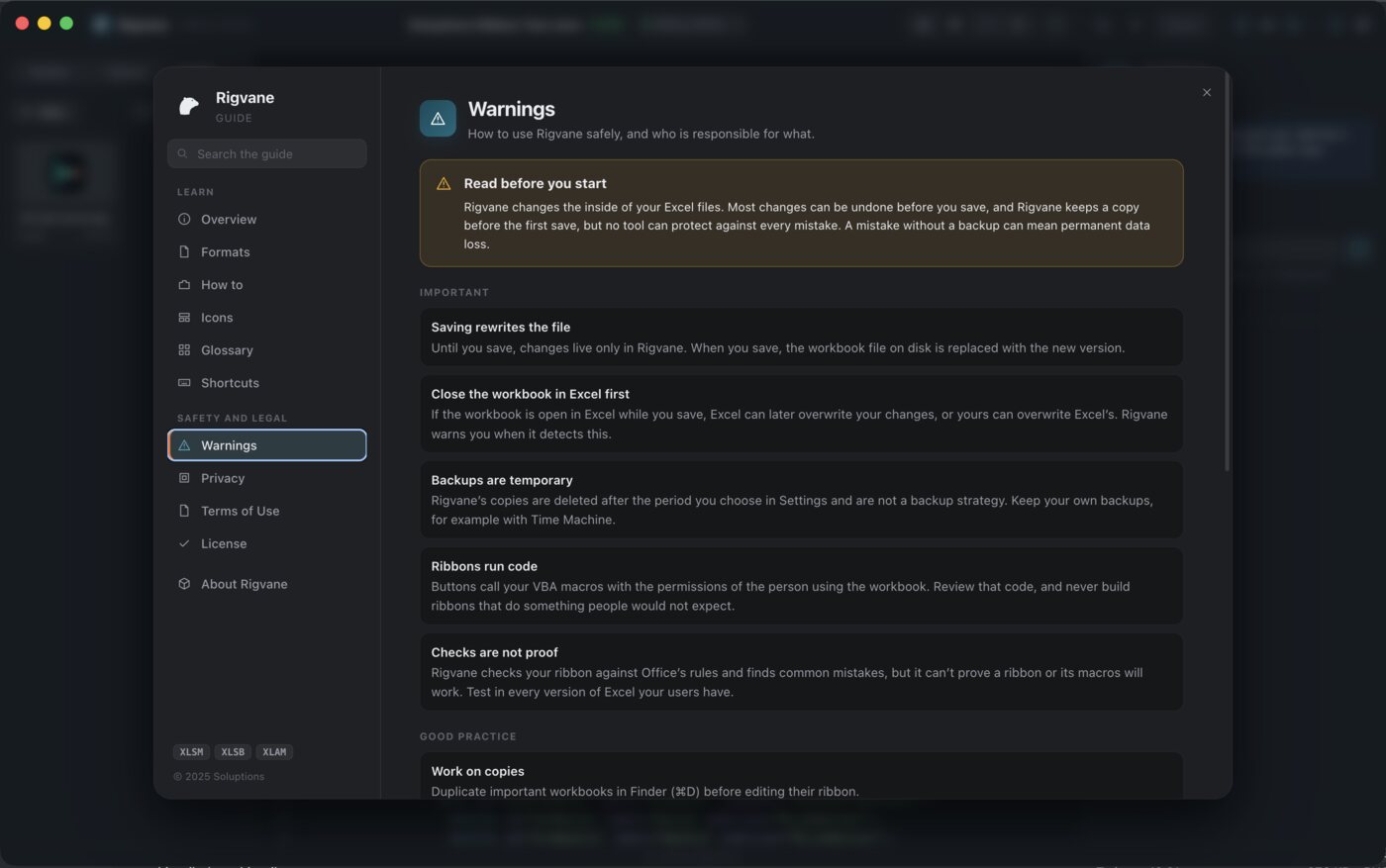
Rigvane comes with its own guide (⌘?): what each file format is for, step-by-step how-tos, every icon explained, a glossary of ribbon terms, the shortcuts, and the warnings worth reading before you start.

The How to page of the Rigvane Guide: step-by-step guides, from adding your own tab to going back to the original file

Made for speed

Keyboard first.
Mac through and through.

⌘K

Command palette

Every action and every control of the ribbon, a few keys away.

⌥⌘1–4

Switch views

Design, Split, XML and Callbacks.

⌘B

Validate

Run every check on demand. The Problems panel lists them all.

⇧⌘E

Export VBA

All callbacks as a .bas module.

Light and dark appearance, following your Mac. Open a workbook by dropping it on the window.

Safety first

Your workbook,
handled with care.

Rigvane changes only the ribbon of your workbook. Everything else inside the file is carried over with its content unchanged, and every save goes through these steps.

  1. 1

    A backup first

    Before the first save of each session, Rigvane copies the workbook to its backups folder. Old backups are removed after the period you choose.

  2. 2

    Checked before it’s written

    The new file is rebuilt and re-opened in memory first. If anything doesn’t match, nothing is written.

  3. 3

    Excel has it open?

    Rigvane notices when Excel has the workbook open, or when another app changed it since you opened it, and asks before saving.

  4. 4

    Undo, then undo again

    Every change can be undone, even removing the whole ribbon, until you decide to save.

Responsible use

A ribbon decides what the people using a workbook can run. These rules come with every invitation and are part of the Terms of Use.

Made for

  • Your own workbooks and add-ins, or ones you are authorized to modify.
  • Building clear, honest tools for your team or your clients.
  • Maintaining and improving the ribbons you already ship.

Never for

  • Ribbons that make a workbook do something its users would not expect.
  • Hiding or disguising malicious code behind a button.
  • Changing workbooks you have no right to modify.

Privacy

Your workbooks
stay on your Mac.

Rigvane works entirely offline. It has no accounts, no analytics and no tracking, and it never sends your files or their contents anywhere.

Only the files you open

Rigvane reads and changes only the workbooks you open in it.

What it keeps, on your Mac

Your preferences, the recent files list, your license, an error log and the workbook backups. Nothing else.

Backups you control

They are full copies of your workbooks, so Rigvane shows where they are and deletes them on the schedule you set.

The developer receives nothing

No data, files, file names or usage information is ever sent to the developer or to anyone else.

Get Rigvane

By invitation,
for approved partners.

Rigvane is available to approved partners. Ask for an invitation by email; if you already have one, the private download area is waiting.

  1. 01

    Request an invitation

    Copy the message below, fill it in and send it to hello@soluptions.com.

  2. 02

    Confirm your email

    Open the download area. A one-time PIN sent to your email confirms it’s you.

  3. 03

    Download Rigvane

    Download the signed and notarized app. Each invitation allows a set number of downloads.

  4. 04

    Activate it on your Mac

    Copy the Mac code Rigvane shows, paste it in the download area and get a license for that Mac. Rigvane checks it offline.

Ask for your invitation by email

Copy the address, the subject and the message, fill in the message and send it from your own email. This page sends and keeps nothing.

To
hello@soluptions.com
Subject
Rigvane invitation request
Message
Hello,

I would like an invitation to Rigvane.

Name:
Company (optional):
How I work with Excel and VBA:
What I would use Rigvane for:

Thank you.
  • Send it from the email address you will use for Rigvane: your invitation is tied to it.
  • No attachments, passwords or client data, please: a few lines are enough.

Or open your email app with everything filled in

Requirements

Mac
macOS 12 Monterey or later, on a Mac with Apple silicon or Intel (universal app). Nothing else to install.
Workbooks
.xlsm, .xlsb, .xlam and .xltm (with macros), and .xlsx and .xltx (ribbon without VBA callbacks)
Excel
Not needed to edit. Use Microsoft Excel to try the ribbon.
Languages
English and Spanish
Version
2.1.0